сначала циклично перегружался после загрузки, теперь при включении экран моргает, загрузка не идёт, не "кирпич", к компу подключается и перепрошивается по инструкции, и перепрошивка проходит успешно, но все равно не грузится, моргает экран при включении
не грузитсяб моргает экран при включении
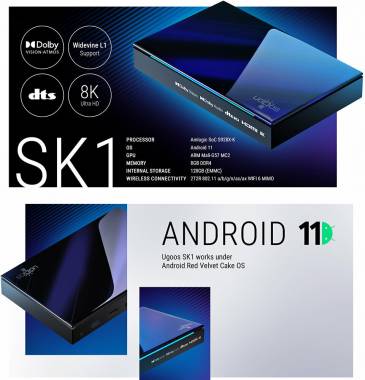
проблема с ТВ-приставкой Ugoos SK1 / Зеленоград
Комментарии (1):
Ремонт ТВ-приставок в Зеленограде service.fixim.ru
321 просмотр
добавить комментарий...

 мастер
35 865 решений
.
По ходу флешер разблокировал залоченный B/L, но проблема осталась. Мне кажется проблема в прошивке, точнее в recovery.
show in english
The problem with the Ugoos SK1 media player:
Does not boot, screen flickers when turned on.
At first, it was rebooting cyclically after loading up, now when turned on, the screen flickers, booting does not proceed. It is not a "brick"; it connects to the computer and can be reflashed following the instructions, and the reflashing process completes successfully, but it still does not boot. The screen flickers when turned on.
It seems that the flasher unlocked the locked B/L (BootLoader?), but the problem remains. I think the problem is with the firmware, more precisely with the recovery.
I understand you're facing a frustrating issue with your Ugoos SK1 media player. Let's break this down systematically. Since you've confirmed the device is detected by your computer and can be re-flashed, we are not dealing with a completely hard-bricked device, which is good news.
Given the symptoms—bootloop progressing to a flickering screen without successful boot, even after a successful re-flash—the issue is highly likely one of the following:
1. Corrupted or Incorrect Firmware: The most probable cause. The firmware you are flashing, while it completes successfully, might be:
* Incorrect for your exact hardware revision. Manufacturers sometimes change components (like WiFi/BT modules) without changing the model name, requiring a different firmware version.
* Corrupted or incomplete download.
* Not the specific version needed to properly initialize your hardware.
2. Faulty Recovery Partition: As you suspected, if the `recovery` partition is corrupted or the wrong version, the device will be unable to boot properly, even if the main system (`boot`, `system` partitions) is fine. The initial bootloader hands off to `recovery` or `boot`, and a failure here causes these symptoms.
3. Underlying Hardware Issue: While less likely since it was working before and responds to flashing, a failing power supply unit (PSU) can cause boot loops and flickering. A failing eMMC storage chip is another possibility, though often re-flashing would fail in this case.
Here is a concrete, step-by-step action plan to resolve this:
Step 1: Firmware Verification and Re-download
This is the most critical step. Do not skip this.
1. Identify Your Exact Hardware Version: Look on the bottom of the Ugoos SK1. There should be a sticker with a serial number and, crucially, a version number (e.g., V1.0, V2.0, V2.1, etc.). The number is tiny but it's there.
2. Find the Correct Firmware: Go to the official Ugoos website (ugoos.com). Navigate to the Support -> Firmware section for the SK1. They often have multiple firmware files for different hardware revisions. You MUST use the firmware specifically marked for your hardware version (e.g., "SK1_V2.1_20230112.img").
3. Download and Verify: Download the firmware. Before flashing, verify the file integrity:
* Check if the website provides an MD5 or SHA256 checksum for the file.
* Generate a checksum of your downloaded file using a tool like `certutil -hashfile <filename> MD5` in Windows Command Prompt or a GUI tool like HashCalc.
* They must match exactly. If they don't, the download is corrupt. Re-download it.
Step 2: Advanced Flashing Procedure
Do not use the "simple" or default options in your flashing tool (likely Amlogic USB Burning Tool or similar). We need to do a thorough, low-level erase.
1. Use the Correct Flashing Tool: Ensure you are using the latest version of the recommended tool for Ugoos devices (e.g., Amlogic USB Burning Tool v2.2.0 or the version specified by Ugoos).
2. Load the Verified Firmware File.
3. Crucial Flashing Settings:
* Erase Bootloader: This is often called "Erase all" or "Erase bootloader" in the options. ENABLE THIS. This performs a deep erase of all partitions, including the bootloader and recovery, and forces a full rewrite. This is different from a simple "unlock".
* Do NOT enable "Erase all without bootloader" if you have a separate option. We want to erase *everything*.
* Force Erase All: If there is an "Erase all" option, check it.
4. Start the Flashing Process: Connect the device (usually by holding the reset button while plugging in the USB cable). The tool should detect it. Start the flash and let it run to 100%. It should end with a "Success" or "Burn successfully" message.
5. Physically Disconnect: After success, completely disconnect the USB cable and the power adapter from the Ugoos box for at least 30 seconds. This ensures a full power cycle.
Step 3: First Boot and Power Check
1. Use the Official Power Adapter: Connect only the official 5V/2A power adapter directly to the wall outlet. Do not use USB power from a TV or PC for the first boot. A weak power source can cause boot loops and flickering.
2. Connect to TV: Connect the HDMI cable.
3. Power On: Plug in the power adapter. Observe. The boot process might take significantly longer than usual (3-5 minutes) on the first boot after a full erase. Be patient.
Step 4: If the Problem Persists
If after all the above you still have a flickering screen:
1. Test the Power Supply: Use a multimeter to check the output voltage of your power adapter. It should be a steady 5.0V - 5.2V under load. If it's below 4.8V or fluctuates, it's faulty. Try a known-good, high-quality 5V/2A adapter.
2. Try a Different Firmware Version: As a last resort, with the hardware version in mind, try flashing an *older*, known-stable version of the firmware for your device from the Ugoos website. Sometimes a newer firmware can have bugs.
3. Hardware Failure: If multiple, verified firmwares and a good PSU don't work, the issue may be a failed eMMC chip or another motherboard component. At this point, the repair moves beyond software and requires component-level troubleshooting or replacement.
Summary of your most likely path to success: Find the exact hardware version, download the matching firmware from the official source, verify its checksum, and re-flash with the "Erase Bootloader"/"Erase All" option enabled. This will comprehensively overwrite the recovery and all other partitions, which is the most probable fix for your symptoms.
По ходу флешер разблокировал залоченный B/L, но проблема осталась. Мне кажется проблема в прошивке, точнее в recovery.
show in english
The problem with the Ugoos SK1 media player:
Does not boot, screen flickers when turned on.
At first, it was rebooting cyclically after loading up, now when turned on, the screen flickers, booting does not proceed. It is not a "brick"; it connects to the computer and can be reflashed following the instructions, and the reflashing process completes successfully, but it still does not boot. The screen flickers when turned on.
It seems that the flasher unlocked the locked B/L (BootLoader?), but the problem remains. I think the problem is with the firmware, more precisely with the recovery.
I understand you're facing a frustrating issue with your Ugoos SK1 media player. Let's break this down systematically. Since you've confirmed the device is detected by your computer and can be re-flashed, we are not dealing with a completely hard-bricked device, which is good news.
Given the symptoms—bootloop progressing to a flickering screen without successful boot, even after a successful re-flash—the issue is highly likely one of the following:
1. Corrupted or Incorrect Firmware: The most probable cause. The firmware you are flashing, while it completes successfully, might be:
* Incorrect for your exact hardware revision. Manufacturers sometimes change components (like WiFi/BT modules) without changing the model name, requiring a different firmware version.
* Corrupted or incomplete download.
* Not the specific version needed to properly initialize your hardware.
2. Faulty Recovery Partition: As you suspected, if the `recovery` partition is corrupted or the wrong version, the device will be unable to boot properly, even if the main system (`boot`, `system` partitions) is fine. The initial bootloader hands off to `recovery` or `boot`, and a failure here causes these symptoms.
3. Underlying Hardware Issue: While less likely since it was working before and responds to flashing, a failing power supply unit (PSU) can cause boot loops and flickering. A failing eMMC storage chip is another possibility, though often re-flashing would fail in this case.
Here is a concrete, step-by-step action plan to resolve this:
Step 1: Firmware Verification and Re-download
This is the most critical step. Do not skip this.
1. Identify Your Exact Hardware Version: Look on the bottom of the Ugoos SK1. There should be a sticker with a serial number and, crucially, a version number (e.g., V1.0, V2.0, V2.1, etc.). The number is tiny but it's there.
2. Find the Correct Firmware: Go to the official Ugoos website (ugoos.com). Navigate to the Support -> Firmware section for the SK1. They often have multiple firmware files for different hardware revisions. You MUST use the firmware specifically marked for your hardware version (e.g., "SK1_V2.1_20230112.img").
3. Download and Verify: Download the firmware. Before flashing, verify the file integrity:
* Check if the website provides an MD5 or SHA256 checksum for the file.
* Generate a checksum of your downloaded file using a tool like `certutil -hashfile <filename> MD5` in Windows Command Prompt or a GUI tool like HashCalc.
* They must match exactly. If they don't, the download is corrupt. Re-download it.
Step 2: Advanced Flashing Procedure
Do not use the "simple" or default options in your flashing tool (likely Amlogic USB Burning Tool or similar). We need to do a thorough, low-level erase.
1. Use the Correct Flashing Tool: Ensure you are using the latest version of the recommended tool for Ugoos devices (e.g., Amlogic USB Burning Tool v2.2.0 or the version specified by Ugoos).
2. Load the Verified Firmware File.
3. Crucial Flashing Settings:
* Erase Bootloader: This is often called "Erase all" or "Erase bootloader" in the options. ENABLE THIS. This performs a deep erase of all partitions, including the bootloader and recovery, and forces a full rewrite. This is different from a simple "unlock".
* Do NOT enable "Erase all without bootloader" if you have a separate option. We want to erase *everything*.
* Force Erase All: If there is an "Erase all" option, check it.
4. Start the Flashing Process: Connect the device (usually by holding the reset button while plugging in the USB cable). The tool should detect it. Start the flash and let it run to 100%. It should end with a "Success" or "Burn successfully" message.
5. Physically Disconnect: After success, completely disconnect the USB cable and the power adapter from the Ugoos box for at least 30 seconds. This ensures a full power cycle.
Step 3: First Boot and Power Check
1. Use the Official Power Adapter: Connect only the official 5V/2A power adapter directly to the wall outlet. Do not use USB power from a TV or PC for the first boot. A weak power source can cause boot loops and flickering.
2. Connect to TV: Connect the HDMI cable.
3. Power On: Plug in the power adapter. Observe. The boot process might take significantly longer than usual (3-5 minutes) on the first boot after a full erase. Be patient.
Step 4: If the Problem Persists
If after all the above you still have a flickering screen:
1. Test the Power Supply: Use a multimeter to check the output voltage of your power adapter. It should be a steady 5.0V - 5.2V under load. If it's below 4.8V or fluctuates, it's faulty. Try a known-good, high-quality 5V/2A adapter.
2. Try a Different Firmware Version: As a last resort, with the hardware version in mind, try flashing an *older*, known-stable version of the firmware for your device from the Ugoos website. Sometimes a newer firmware can have bugs.
3. Hardware Failure: If multiple, verified firmwares and a good PSU don't work, the issue may be a failed eMMC chip or another motherboard component. At this point, the repair moves beyond software and requires component-level troubleshooting or replacement.
Summary of your most likely path to success: Find the exact hardware version, download the matching firmware from the official source, verify its checksum, and re-flash with the "Erase Bootloader"/"Erase All" option enabled. This will comprehensively overwrite the recovery and all other partitions, which is the most probable fix for your symptoms.
10 декабря 2025
добавить комментарий
другие решения ожидаются…
Знаете, как решить эту проблему?
Поделитесь своим знанием!
Ваш способ решения:
Наиболее похожие проблемы из этого раздела
При просмотре ютюб самопроизвольно растянулся экран. Меню и всё видео. Как будто изменилось разрешение. Но при загрузке логотип 922 в нормальном ...
Перестал загружаться. Горит красный светодиод и на экране квадратный логотип S922X. Через рекавери ( кнопка на обратной стороне внизу ) сделал ...
В общем телевизор 2012 года Самсунг es разрешение экрана fullhd. При включенных тумблерах в меню разработчика на свободный размер и форму и ...
757
Здравствуйте! Ugoos Am8 не выводит изображение на экран телевизора, постоянно приходится подтверждать порт HDMI пультом от телевизора, тогда ...
здравствуйте! при попытке воспроизвести файл hevc появились пиксельные полоски во весь экран, сброс не помог
1
1 170
